
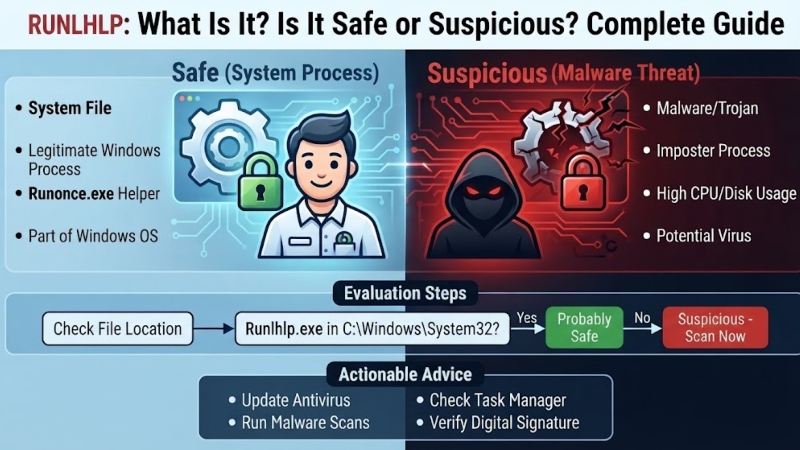
it Have you seen Runlhlp in Windows Task Manager, your Startup list, or an antivirus scan?
If yes, you may be wondering, “What is Runlhlp, and is it safe?”
You may find different answers online. Some websites describe Runlhlp as a background helper. Others connect the name with the old Windows Help system. However, there is an important point to understand.
Microsoft does not list runlhlp.exe as a standard Windows process in its official documentation.
Microsoft does document WinHlp32.exe as the Windows Help program. It was used to open old .hlp Help files. Microsoft also explains that Windows Help was no longer included as a normal Windows feature starting with Windows Vista.
So, if you find Runlhlp on your computer, you should not call it safe or dangerous just because of its name.
Instead, you should check where the file came from, where it is stored, who made it, and how it behaves.
In this guide, we will explain what Runlhlp may be, how to check it, when it may be suspicious, and what you should do if you are worried about it.
What Is Runlhlp?
Runlhlp is not a clearly documented standard Windows process.
If you find a file called runlhlp.exe on your PC, the name alone cannot tell you if it is safe.
It could be part of a third-party program. It could also be connected to older software. If you do not know where the file came from, you should check it carefully.
The most useful question is not:
“Is Runlhlp safe?”
A better question is:
“Where is the Runlhlp file, which program installed it, who published it, and what is it doing on my computer?”
These details can give you a much better answer.
Is Runlhlp an Official Windows Process?
Based on available Microsoft documentation, there is not enough official evidence to call Runlhlp a standard Windows process.
Microsoft officially documents WinHlp32.exe as the Windows Help program. It was designed to display .hlp files. Microsoft also says that this Windows Help feature was not included as a normal part of Windows starting with Windows Vista.
This does not mean that every runlhlp.exe file is malware.
It simply means you should not assume that Runlhlp is an official Microsoft file just because its name looks like a Windows component.
You should check the file before making a decision.
Is Runlhlp Related to WinHlp32.exe?
The names Runlhlp and WinHlp32.exe may look similar, so some people may connect them.
Microsoft confirms that WinHlp32.exe is a Windows Help program used to display old .hlp files. However, this does not prove that it runlhlp.exe is another name for the same program.
Therefore, you should not treat these two files as the same thing without more evidence.
If you found Runlhlp inside an old software folder, check the name of that software and its publisher.
Is Runlhlp Safe or Is It Malware?
You cannot answer this question by looking at the filename alone.
An unknown process can be harmless. However, malware can also use names that look normal or familiar.
Because of this, it would be wrong to say that Runlhlp is definitely a virus.
It would also be wrong to say that it is 100% safe without checking the file.
Look at these details:
- File location
- Publisher name
- Digital signature
- Parent program
- Startup entry
- Antivirus results
- File hash
- Recently installed software
- CPU and memory usage
- Network activity
The more information you check, the easier it becomes to understand what the file is doing.
Step 1: Check the Runlhlp File Location
If Runlhlp is running in Task Manager, right-click it and choose Open file location.
Now look at the folder where the file is stored.
If it is inside a folder belonging to a program you know and trust, that is useful information.
But if the file is inside an unknown, temporary, Downloads, or unusual folder, you should investigate it more carefully.
Remember:
The file location alone does not prove that a file is safe.
Malware can sometimes use folders that look normal.
Step 2: Check the Publisher and Digital Signature
Right-click the Runlhlp file and open Properties.
If you see a Digital Signatures tab, check it.
Look for:
- Publisher name
- Signature status
- Company name
- Certificate information
Ask yourself whether the publisher matches the software you installed.
An unsigned file is not automatically malware. Some normal programs may not have a digital signature.
However, an unknown publisher + unknown location + strange behavior should make you more careful.
Step 3: Scan Runlhlp With Antivirus Software
If you do not recognize the file, scan it with Windows Security or another trusted antivirus program.
If your security software finds a threat, follow its recommended action.
Do not delete the file immediately just because the name looks strange.
It is better to understand what the file belongs to before removing it.
If your antivirus recommends putting the file in quarantine, follow that recommendation.
Step 4: Check the File Hash
More advanced users can also check the file’s SHA-256 hash.
A hash works like a digital fingerprint for a file. You can use it to compare a file with information from security services or known samples.
Services such as VirusTotal can provide security detection results for files and file hashes.
Microsoft’s Sysinternals Autoruns also supports VirusTotal checking when the related option is enabled.
However, remember that one security detection does not always prove that a file is malware.
You should look at the full picture.
Step 5: Check Why Runlhlp Starts With Windows
Does Runlhlp start every time you turn on your computer?
If yes, you should check its startup entry.
Microsoft’s Sysinternals Autoruns is a useful tool for this job. It can show programs that start automatically through places such as Startup folders, Registry entries, and Windows services. (Microsoft Learn)
Autoruns can help you understand how Runlhlp starts and which program is responsible for it.
This can be useful when a process keeps coming back after you close it.
Step 6: Find the Parent Program
You should also try to find out which program started Runlhlp.
For example, suppose you installed an application recently and then noticed Runlhlp on your computer.
If Runlhlp is located inside that application’s folder, this gives you useful information.
However, if both Runlhlp and its parent program are unknown, you should investigate them more carefully.
Warning Signs That Runlhlp May Be Suspicious
Some signs deserve extra attention.
Unknown File Location
The file is stored somewhere you do not recognize, and you do not know why it is there.
Unknown Publisher
The file has no publisher information or comes from a company you do not recognize.
Unexpected Startup
You did not install any related software, but Runlhlp starts automatically with Windows.
High CPU or Memory Usage
The process constantly uses a large amount of CPU or memory without a clear reason.
Unusual Network Activity
The process makes network connections that you do not expect.
Antivirus Detection
Your trusted antivirus program repeatedly detects the file as a possible threat.
The Process Keeps Coming Back
You close the process, but it starts again without an obvious reason.
One warning sign does not prove that a file is malware.
However, several warning signs together mean you should take a closer look.
Should You Delete Runlhlp?
Do not delete Runlhlp blindly.
First, find out which program the file belongs to.
1. If it is part of a trusted application, deleting it manually could cause that program to stop working correctly.
2. If your antivirus identifies the file as malicious, follow the antivirus program’s instructions for quarantine or removal.
3. If Runlhlp came with an unwanted application, removing the related program may be better than deleting only the .exe file.
What Should You Do If Runlhlp Looks Suspicious?
If you find several warning signs, follow these steps:
- Save your important work.
- Run a full scan with Windows Security or trusted antivirus software.
- Follow the security software’s quarantine or removal instructions.
- Check Runlhlp’s startup entries.
- Review recently installed programs.
- Keep Windows and your security software updated.
- If you have strong evidence that your accounts may have been compromised, consider changing important passwords from a trusted device.
- If the infection seems serious, ask a qualified computer security professional for help.
Do not randomly delete Registry entries or system files.
Removing the wrong file can create new problems.
Runlhlp and WinHlp32.exe Are Not the Same Thing
This point is important because their names can be confusing.
WinHlp32.exe is Microsoft’s documented Windows Help program. It was used to display old .hlp files. Microsoft explains that this feature was no longer included as a normal Windows feature starting with Windows Vista.
Runlhlp.exe, on the other hand, is not established by this Microsoft documentation as a standard Windows component.
Therefore, you should not assume that Runlhlp and WinHlp32.exe are the same file.
If you find both names on your computer, investigate them separately.
Common Mistakes to Avoid
Mistake 1: Thinking Every Unknown File Is Malware
An unknown file is not automatically dangerous.
You need more information before making that decision.
Mistake 2: Trusting a File Because Its Name Looks Normal
A normal-looking name does not prove that a file is safe.
Always check its source and behavior.
Mistake 3: Deleting the File Immediately
Deleting a file without knowing what it does can break another program.
Check it first.
Mistake 4: Trusting Only One Website
Online information about Runlhlp may not always agree.
Compare claims with reliable sources and check the actual file on your computer.
Mistake 5: Checking Only the Filename
The filename is only one clue.
The file location, publisher, digital signature, startup entry, hash, and behavior are more useful.
Simple Runlhlp Safety Checklist
| Check | What to Look For |
|---|---|
| Filename | Is the file really called runlhlp.exe? |
| Location | Which folder contains the file? |
| Publisher | Is the publisher known? |
| Signature | Does it have a valid digital signature? |
| Parent Program | Which program started it? |
| Startup | Does it start automatically? |
| Antivirus | Does your security software detect it? |
| Hash | What does the SHA-256 result show? |
| Behavior | Does it use unusual CPU, memory, or network resources? |
| Installed Software | Did it appear after installing another program? |
This checklist can help you make a better decision instead of guessing from the filename.
Should You Be Worried About Runlhlp?
You do not need to panic just because you see Runlhlp.
At the same time, you should not automatically trust it.
A good rule is:
Treat it as unknown until you verify it.
If the file belongs to a program you know, has a valid publisher, behaves normally, and passes security checks, there may be little reason to worry.
On the other hand, if the file has an unknown source, no trusted publisher, unusual startup behavior, strange network activity, or repeated antivirus detections, you should investigate it further.
Final Verdict
So, what is Runlhlp?
Based on the Microsoft documentation reviewed for this guide, Runlhlp is not established as a standard Windows process.
Microsoft officially documents WinHlp32.exe as the Windows Help program, but that does not prove that it runlhlp.exe is an official Microsoft Windows component.
This also does not mean that every Runlhlp file is malware.
It may be connected to third-party or older software. However, if you do not know where it came from, you should check it before trusting it.
The safest approach is to look at evidence instead of the filename.
Check the file location, publisher, digital signature, parent program, startup entry, antivirus results, hash, and behavior.
If everything looks normal, there may be no reason to panic.
If several warning signs appear together, run a full security scan and investigate the file further.
Frequently Asked Questions
Is Runlhlp an official Windows process?
Microsoft’s available documentation does not identify it runlhlp.exe as a standard Windows process. Microsoft does document WinHlp32.exe as the Windows Help program.
Is Runlhlp a virus?
The filename alone cannot prove that Runlhlp is a virus. Check its location, publisher, digital signature, antivirus results, and behavior before making a decision.
Can I delete Runlhlp?
Do not delete it without checking what program it belongs to. If your antivirus identifies it as malicious, follow the security software’s removal or quarantine instructions.
How can I check Runlhlp?
Start by checking its file location and Properties. Then check the publisher, digital signature, antivirus result, and startup entry. Microsoft’s Sysinternals Autoruns can also help you investigate programs that start automatically.
Is Runlhlp the same as WinHlp32.exe?
There is no Microsoft documentation establishing these two files as the same program. Microsoft documents WinHlp32.exe as its Windows Help program, but its documentation does not identify Runlhlp as a standard Windows component.
What should I do if antivirus detects Runlhlp?
Do not ignore the warning. Run a full system scan and follow your antivirus program’s quarantine or removal instructions. If the result is unclear, check the file’s location, publisher, hash, and related software.